Evaluating the Process Icon for 3D Printing Workflows and Technical Documentation
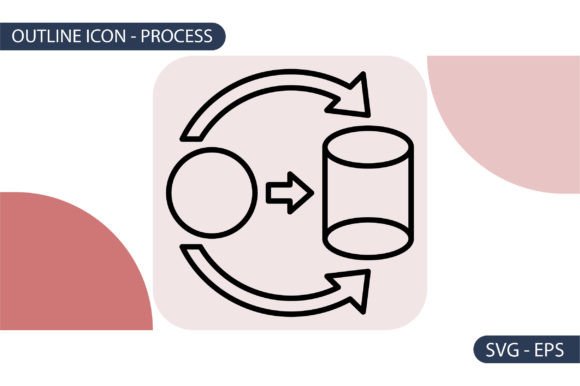
When designing technical documentation, user interfaces for slicer software, or educational materials related to additive manufacturing, visual clarity is paramount. The Process Icon serves as a specific visual shorthand within 3D printing icon packs, representing the sequential nature of fabrication, workflow stages, or system operations. Unlike generic gear or settings symbols, this asset is designed to communicate action, progression, and technical methodology. For professionals and hobbyists evaluating visual resources, understanding the distinct utility of this icon helps determine whether it aligns with current project requirements or if alternative visual metaphors would be more effective.
This icon is part of a specialized collection tailored for the additive manufacturing niche. It is delivered in high-quality vector formats, specifically EPS and SVG, ensuring scalability without loss of fidelity. While the source files are optimized at 100×100 pixels, their vector nature allows them to be resized for anything from small UI buttons to large-format instructional posters. Evaluating this resource requires looking beyond aesthetics to consider technical compatibility, semantic accuracy, and integration into existing design systems.
Distinguishing Characteristics and Semantic Value
The primary value of the Process Icon lies in its semantic specificity. In the context of 3D printing, "process" can refer to several distinct concepts: the layer-by-layer build cycle, the post-processing workflow, or the digital preparation pipeline. This icon distinguishes itself from general industrial symbols by incorporating visual cues relevant to these specific workflows. Where a standard factory icon might imply mass production or assembly, the Process Icon suggests iteration, digital fabrication, and technical precision.
For designers comparing options, this distinction is critical. Using a generic symbol can lead to cognitive friction where users must pause to interpret the meaning. A dedicated Process Icon reduces this load by leveraging established visual conventions within the maker and engineering communities. It signals to the viewer that the content relates to the methodology of creation rather than just the hardware or the final product. This makes it particularly suitable for sections detailing print parameters, material handling procedures, or troubleshooting flowcharts.
Format Versatility: SVG and EPS vs. Raster Alternatives
A significant decision factor when selecting iconography is file format. This Process Icon is provided in both EPS (Encapsulated PostScript) and SVG (Scalable Vector Graphics). Comparing these vector formats against common raster alternatives like PNG or JPG reveals substantial advantages for technical applications.
- Scalability: Although the base dimension is 100×100 pixels, vectors are mathematically defined. This means the icon remains crisp on 4K monitors, retina displays, and printed manuals. Raster icons often become pixelated or blurry when scaled beyond their native resolution, which is unacceptable in professional technical documentation.
- Editability: Both EPS and SVG files allow for color manipulation directly in design software. If your brand guidelines require a specific hex code for safety warnings or process highlights, you can modify the icon instantly. Raster files typically require complex masking or redrawing to achieve similar results.
- File Size and Performance: For web-based slicers or digital knowledge bases, SVGs offer superior performance. They are typically smaller in file size than high-resolution PNGs and can be embedded directly into HTML/CSS, reducing HTTP requests.
- Cross-Platform Compatibility: EPS remains the industry standard for print production and legacy Adobe workflows, while SVG is the native language of the modern web. Having both ensures the asset is future-proof across different media channels.
Users working exclusively in non-vector environments (such as basic word processors or older CAD tools) may find the lack of pre-rendered PNGs a limitation. However, for most modern design workflows involving Figma, Illustrator, Inkscape, or web development, the vector-only approach is a feature, not a deficit.
Comparative Evaluation: Specialized Packs vs. General Libraries
When sourcing assets, creators often choose between comprehensive generalist libraries (like FontAwesome or Material Design) and niche-specific packs. The Process Icon represents the latter category. Understanding the tradeoffs between these approaches helps in making an informed selection.
Strengths of Niche-Specific Assets
Generalist libraries excel at universal concepts: navigation, user management, and basic file operations. However, they often lack depth in specialized verticals. A general library might offer a single "printer" icon, whereas a 3D printing-specific pack provides nuanced variations including the Process Icon, nozzle indicators, bed leveling symbols, and filament path diagrams.
The strength of this specialized approach is visual consistency within the domain. All icons in the pack share the same stroke weight, corner radius, and perspective. When building a cohesive interface or manual, mixing a specialized Process Icon with generic system icons can sometimes create stylistic dissonance. Therefore, this icon is best evaluated as part of a broader ecosystem. If you already utilize other assets from this specific 3D printing pack, the Process Icon will integrate seamlessly. If you are mixing sources, you may need to adjust stroke widths or colors to maintain visual harmony.
Limitations and Considerations
While specialization offers precision, it also implies constraints. The Process Icon is designed with a specific aesthetic interpretation of 3D printing workflows. If your project targets a completely different sub-niche (e.g., bioprinting or metal sintering) where the visual metaphor for "process" differs significantly, this icon might feel too focused on FDM/SLA consumer printing. Additionally, because it is part of a curated pack rather than an open-source community library, updates and variations depend entirely on the original designer. Users requiring frequent additions or community-driven modifications should weigh this dependency against the benefits of high-quality, curated design.
Practical Application and Best-Fit Scenarios
Determining when to deploy the Process Icon versus an alternative depends heavily on the user's intent and the information architecture of the project. Through practical evaluation, several best-fit scenarios emerge where this asset outperforms generic substitutes.
Ideal Use Cases:
- Slicer Software Interfaces: Labeling tabs or buttons related to print configuration, G-code generation, or layer preview modes. The icon effectively communicates "workflow" rather than static "settings."
- Educational Content: Illustrating step-by-step guides for beginners. The visual cue helps segment content into digestible procedural chunks.
- Maintenance Documentation: Denoting calibration routines or nozzle cleaning cycles. These are processes, not just states, making this icon semantically accurate.
- Service Bureau Portfolios: Explaining the production pipeline to clients who need to understand lead times and quality assurance steps.
When to Consider Alternatives:
If the content refers to a static state (e.g., "Printer Idle" or "Material Inventory"), a status or storage icon is more appropriate. Similarly, if the "process" being described is purely administrative (e.g., "Order Processing" or "Payment Workflow"), using a 3D printing-specific icon could mislead users into expecting technical fabrication details. Contextual relevance is the ultimate filter; the icon should clarify, not decorate.
Technical Integration and Asset Management
For those deciding to incorporate this Process Icon, proper asset management ensures long-term utility. Since the files are accepted as EPS and SVG, establishing a consistent workflow is recommended.
When importing into web projects, optimize the SVG code. Tools like SVGO can remove unnecessary metadata and editor artifacts, further reducing file size. For print projects using EPS, ensure your color profile matches the output device (CMYK for offset printing, RGB for digital presses). Because the icon originates at 100×100 pixels, verify that line weights remain visible when scaling down below 24 pixels. Vector mathematics preserve edges, but extremely thin strokes may disappear on low-DPI screens or in low-quality print runs. Testing at actual display size is a necessary validation step.
Furthermore, consider accessibility. When implementing this icon digitally, always pair it with appropriate ARIA labels or alt text. "Process Icon" is descriptive for designers but unhelpful for screen reader users. Better alternatives include "3D Print Workflow," "Fabrication Steps," or "Calibration Procedure," depending on the specific function the icon serves in the interface.
Making the Final Selection Decision
Choosing the right visual asset is a balance of aesthetic preference, technical requirement, and semantic accuracy. The Process Icon from this 3D printing pack offers a high-quality, scalable solution for professionals needing to visualize additive manufacturing workflows. Its vector format ensures versatility, while its niche design provides clarity that generalist libraries often lack.
However, it is not a universal replacement for all operational symbols. Evaluate it against your specific content needs: Does it accurately represent the procedure you are documenting? Does it match the visual style of your existing assets? Do you have the tools to utilize vector formats effectively?
For designers and engineers committed to maintaining a professional standard in 3D printing communication, this asset represents a valuable component of a larger visual toolkit. To explore how this icon fits within a comprehensive suite of additive manufacturing visuals, visit the profile to see more product designs. Following on Creative Fabrica ensures access to the latest product design updates, allowing for continuous refinement of your technical visual language. Thank you for visiting and for prioritizing clarity in your technical communications.